> ## Documentation Index
> Fetch the complete documentation index at: https://docs.baeum.ai.kr/llms.txt
> Use this file to discover all available pages before exploring further.
# Ollama
Ollama는 로컬에서 LLM을 실행할 수 있는 런타임입니다.
## 사전 준비
* [Homebrew](/setup/macos/homebrew) 설치 완료
* 디스크 여유 공간 10GB 이상 권장
## 설치 과정
아래 명령어를 실행합니다.
```bash theme={null}
brew install ollama
```
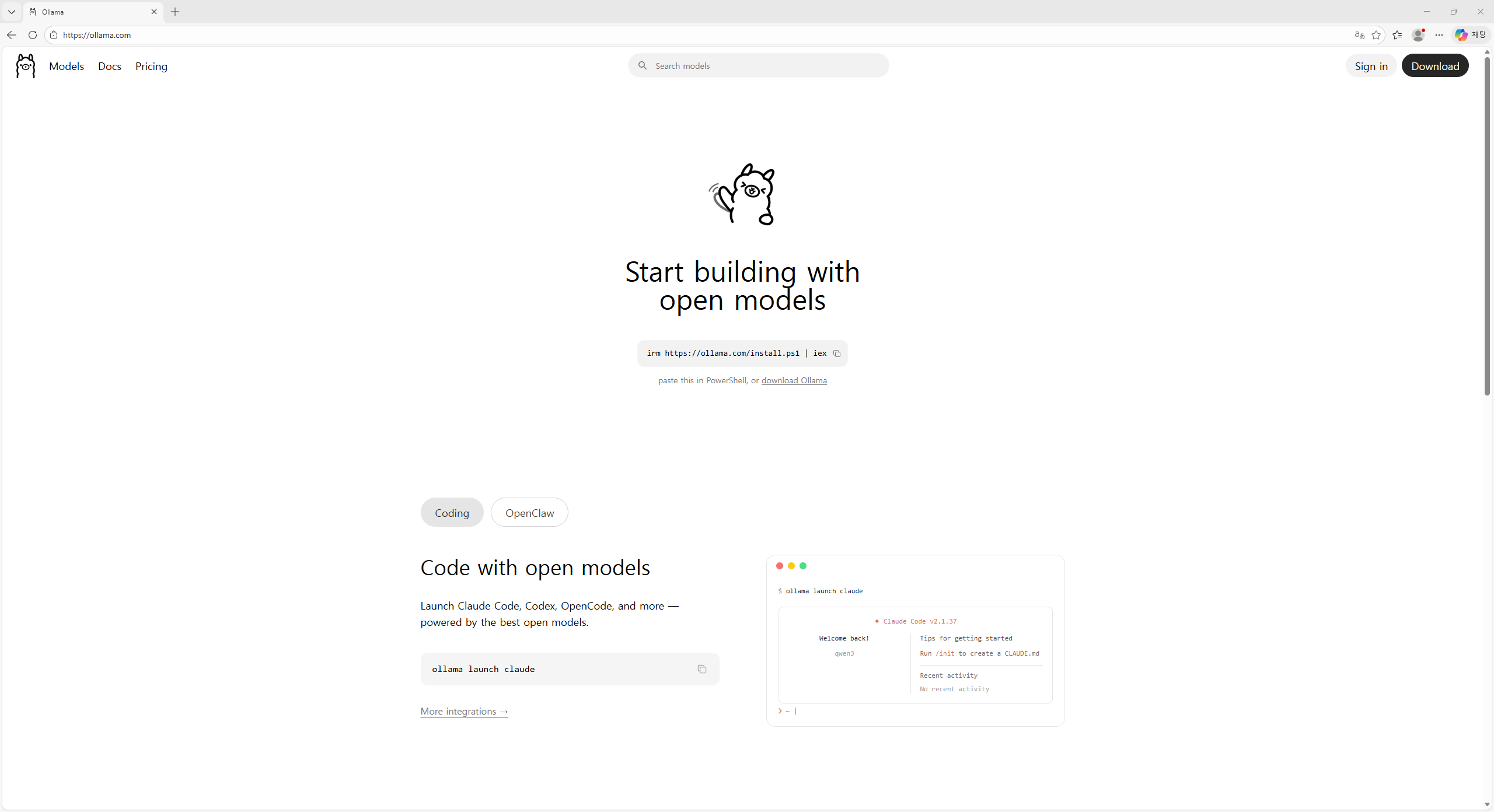 터미널에서 서버를 실행합니다.
```bash theme={null}
ollama serve
```
다른 터미널에서 모델을 내려받아 실행합니다.
```bash theme={null}
ollama pull llama3.1:8b
ollama run llama3.1:8b
```
## 설치 확인하기
```bash theme={null}
ollama --version
ollama list
```
모델 목록이 출력되면 정상입니다.
## 문제 해결
* **포트 충돌**: 기존 Ollama 프로세스가 있으면 종료 후 다시 실행합니다.
* **모델 다운로드 실패**: 네트워크 프록시/방화벽 정책을 확인합니다.
## 설치 점검 목록
* 관리자 권한/필수 도구 등 사전 요구사항을 먼저 확인했습니다.
* 설치 후 버전 확인 명령어(`--version`)를 실행해 정상 설치를 검증했습니다.
* PATH/환경변수 변경이 필요한 경우 터미널을 다시 열어 적용 여부를 확인했습니다.
* 문제가 생겼을 때를 대비해 설치 로그 또는 스크린샷을 남겼습니다.
## 관련 문서
운영체제별 설치 흐름을 다시 확인합니다.
다음 설치 단계를 이어서 진행합니다.
터미널에서 서버를 실행합니다.
```bash theme={null}
ollama serve
```
다른 터미널에서 모델을 내려받아 실행합니다.
```bash theme={null}
ollama pull llama3.1:8b
ollama run llama3.1:8b
```
## 설치 확인하기
```bash theme={null}
ollama --version
ollama list
```
모델 목록이 출력되면 정상입니다.
## 문제 해결
* **포트 충돌**: 기존 Ollama 프로세스가 있으면 종료 후 다시 실행합니다.
* **모델 다운로드 실패**: 네트워크 프록시/방화벽 정책을 확인합니다.
## 설치 점검 목록
* 관리자 권한/필수 도구 등 사전 요구사항을 먼저 확인했습니다.
* 설치 후 버전 확인 명령어(`--version`)를 실행해 정상 설치를 검증했습니다.
* PATH/환경변수 변경이 필요한 경우 터미널을 다시 열어 적용 여부를 확인했습니다.
* 문제가 생겼을 때를 대비해 설치 로그 또는 스크린샷을 남겼습니다.
## 관련 문서
운영체제별 설치 흐름을 다시 확인합니다.
다음 설치 단계를 이어서 진행합니다.