> ## Documentation Index
> Fetch the complete documentation index at: https://docs.baeum.ai.kr/llms.txt
> Use this file to discover all available pages before exploring further.
# Visual Studio Code
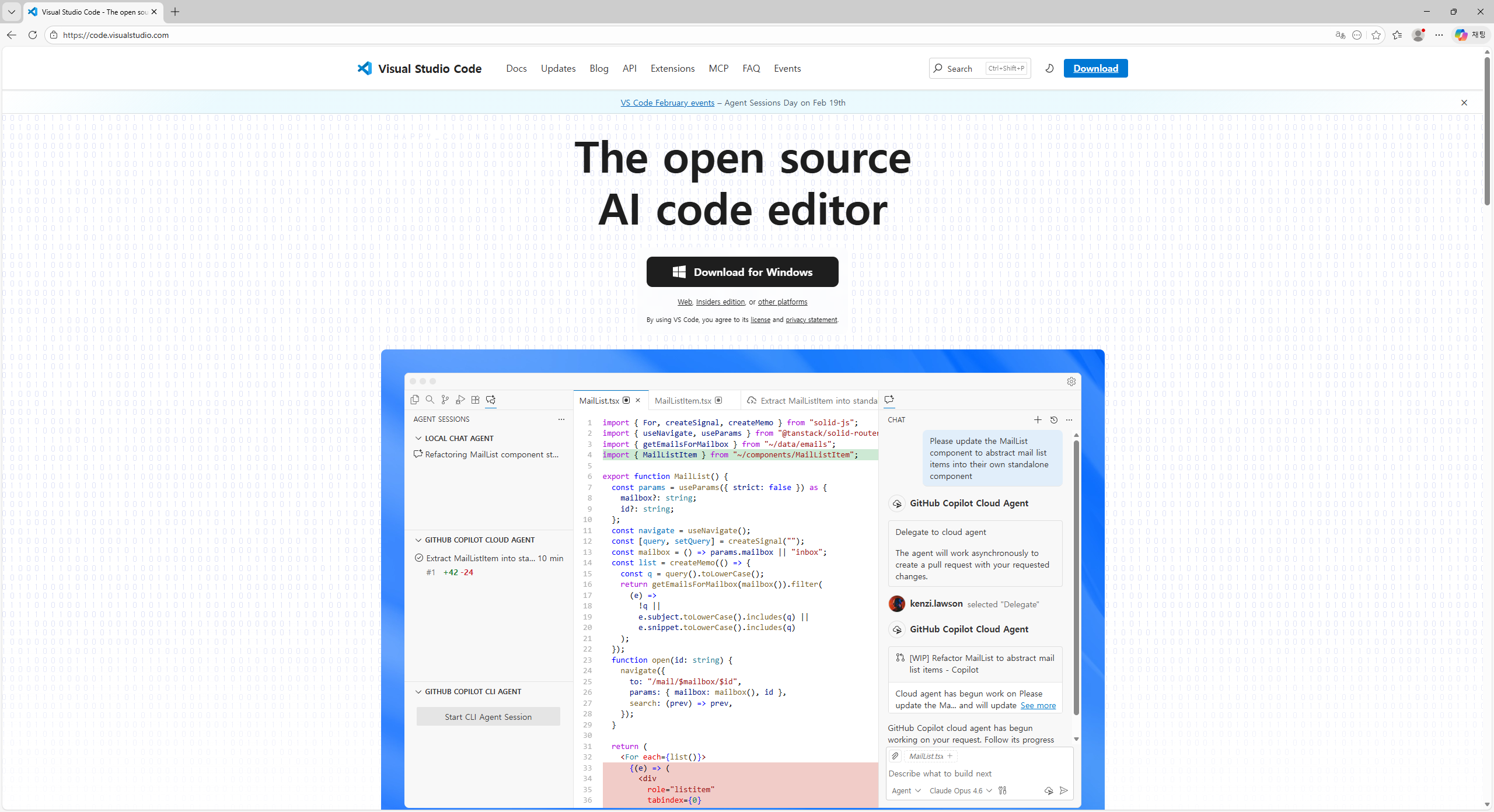
VS Code는 코드 편집, 디버깅, 터미널 작업을 통합해서 처리할 수 있는 개발 도구입니다.
## 사전 준비
* [Homebrew](/setup/macos/homebrew) 설치 완료
## 설치 과정
아래 명령어를 실행합니다.
```bash theme={null}
brew install --cask visual-studio-code
```
설치가 완료되면 앱을 실행합니다.
```bash theme={null}
open -a "Visual Studio Code"
```
 VS Code에서 `Cmd + Shift + P`를 누른 뒤, 아래 항목을 실행합니다.
* `Shell Command: Install 'code' command in PATH`
## 설치 확인하기
```bash theme={null}
code --version
```
버전 정보가 출력되면 터미널에서 VS Code 명령어를 사용할 수 있습니다.
## 문제 해결
* **`code: command not found`**: 위 Shell Command를 다시 실행하고 터미널을 재시작합니다.
* **앱 실행이 차단됨**: 시스템 설정 > 개인정보 보호 및 보안에서 실행 허용을 확인합니다.
## 설치 점검 목록
* 관리자 권한/필수 도구 등 사전 요구사항을 먼저 확인했습니다.
* 설치 후 버전 확인 명령어(`--version`)를 실행해 정상 설치를 검증했습니다.
* PATH/환경변수 변경이 필요한 경우 터미널을 다시 열어 적용 여부를 확인했습니다.
* 문제가 생겼을 때를 대비해 설치 로그 또는 스크린샷을 남겼습니다.
## 관련 문서
운영체제별 설치 흐름을 다시 확인합니다.
다음 설치 단계를 이어서 진행합니다.
VS Code에서 `Cmd + Shift + P`를 누른 뒤, 아래 항목을 실행합니다.
* `Shell Command: Install 'code' command in PATH`
## 설치 확인하기
```bash theme={null}
code --version
```
버전 정보가 출력되면 터미널에서 VS Code 명령어를 사용할 수 있습니다.
## 문제 해결
* **`code: command not found`**: 위 Shell Command를 다시 실행하고 터미널을 재시작합니다.
* **앱 실행이 차단됨**: 시스템 설정 > 개인정보 보호 및 보안에서 실행 허용을 확인합니다.
## 설치 점검 목록
* 관리자 권한/필수 도구 등 사전 요구사항을 먼저 확인했습니다.
* 설치 후 버전 확인 명령어(`--version`)를 실행해 정상 설치를 검증했습니다.
* PATH/환경변수 변경이 필요한 경우 터미널을 다시 열어 적용 여부를 확인했습니다.
* 문제가 생겼을 때를 대비해 설치 로그 또는 스크린샷을 남겼습니다.
## 관련 문서
운영체제별 설치 흐름을 다시 확인합니다.
다음 설치 단계를 이어서 진행합니다.